Emails & email templates
The app writes emails about your cases. You read the whole email, then click Send to send it from your own Gmail, or Open in Gmail to finish it there as a draft. An email template saves the recipients, message and attachments an email starts from.
The app writes an email from your cases and files. You read all of it, then click Send and it goes from your own Gmail, or click Open in Gmail to finish it there as a draft.
 Checked cases
 The email
 From your Gmail
Before your first email
Opens on Pro. Connect Gmail once: Settings, Account, turn on Gmail. The app asks Google for permission to create drafts and to send email from your Gmail. It sends only when you click Send, or when an automation someone set to send runs (Sending email from an automation).
Write an email
- Open a case: Case actions, Compose email. For several: Select cases, tick them, Compose email in the bar.
- Tick more cases in the list to grow the same email.
- Pick a Template. The email fills in with each case's values, ready to send. Change any word you like: your changes stay in this email and never touch the template. In an email about several cases, each case gets its own copy of the paragraphs that name it. Or pick No template and write the email yourself.
- Under Attachments, tick files and pick Attach or Link for each. A ticked file shows the name the email sends it under. In an email about several cases, that name starts with its case's ID. Click a file's name to see it, or the pencil to rename it. Drop files anywhere on the list, or browse, to save them on the case and add them. In an email about several cases, the app asks which case to save them on.
- Check the recipients, subject, message and files, then click Send. The email goes from your Gmail and the screen closes. To finish it in Gmail instead, click Open in Gmail: Gmail opens on a draft that you send there.
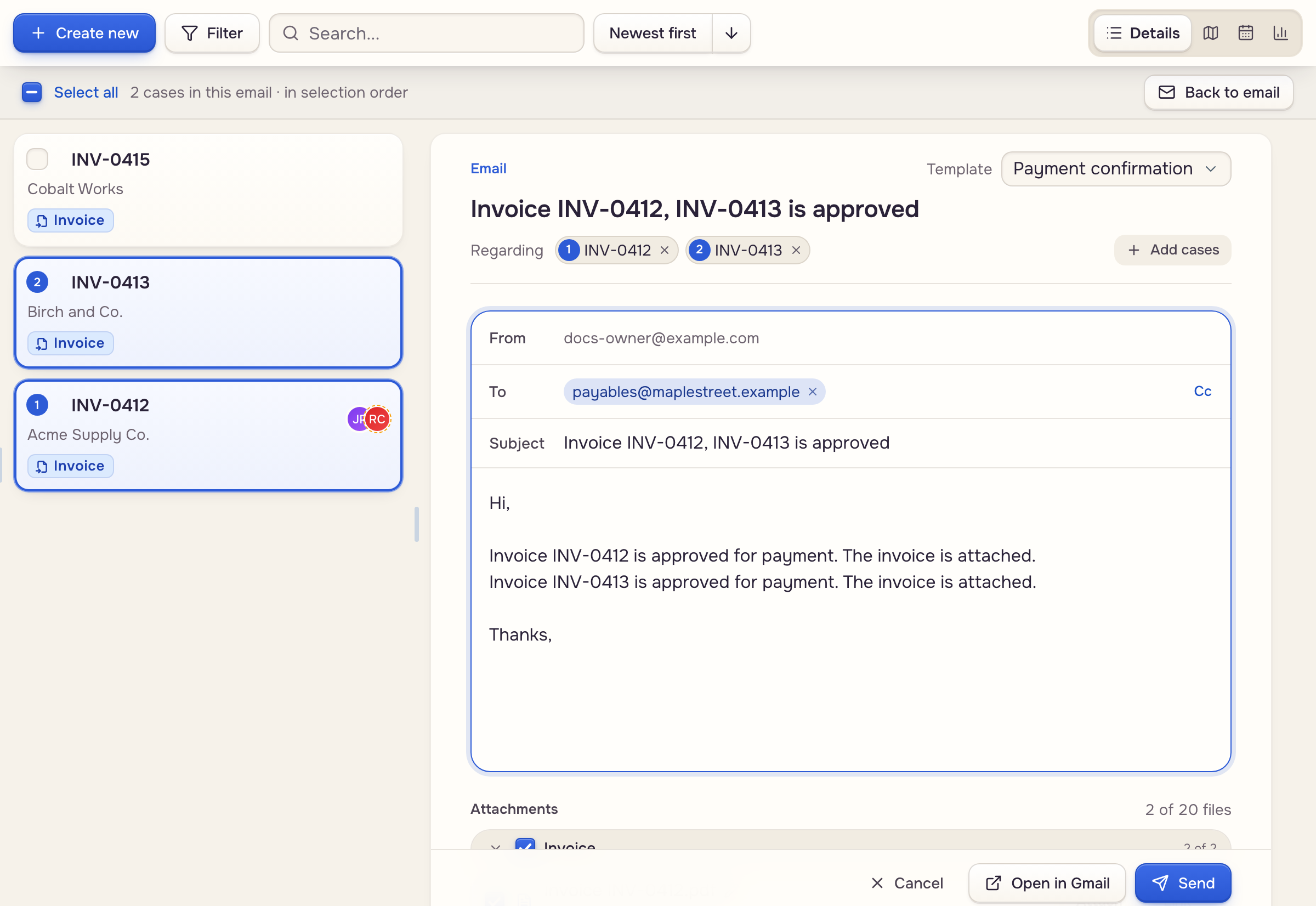
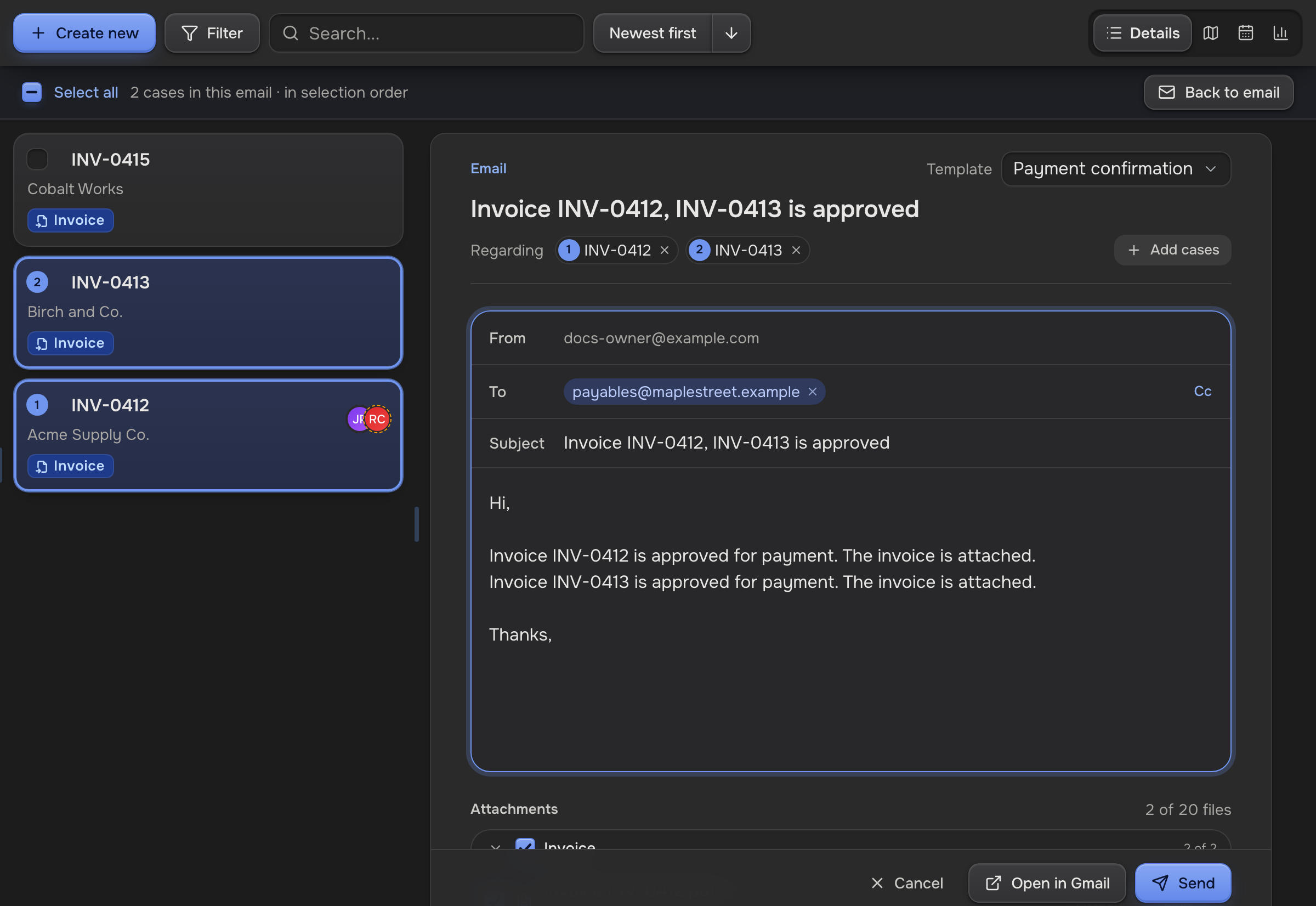
- Link opens only for people who can open the case in the app. For anyone else, Attach.
- Change the cases after you edit the text and the email says it was written for the earlier cases. Write it again asks first, then replaces your changes to the subject and message, filled in for the cases it has now.
- Cancel closes the email. Nothing is sent and no draft is made. A file you dropped stays on the case.
What Send does
Send sends one email, however many cases it is about, from your own address. It shows in your Gmail Sent folder.
Each case in the email gets a line in its activity that reads Emailed and then the recipients, with the files that case contributed. The subject and the message are not kept there. A teammate sees only the files in categories they can see, and a client never sees the line.
- Click Send twice and one email goes out.
- If the app says the email may have been sent, Gmail did not confirm it. Check Sent in Gmail before you click Send again.
- The app adds no Gmail signature. End the message with your own sign-off, or put it in the email template.
- Each person can send 20 emails an hour.
Email templates
Owners and admins keep them under Email templates in the sidebar: + for a new one, or open one and click Edit. A template holds To, Cc, Subject, the message, and Attachments rules: All case files, one file category, or Case uploads and note attachments; Attach or Link; a Rename to… pattern if you want one. Click Save template.
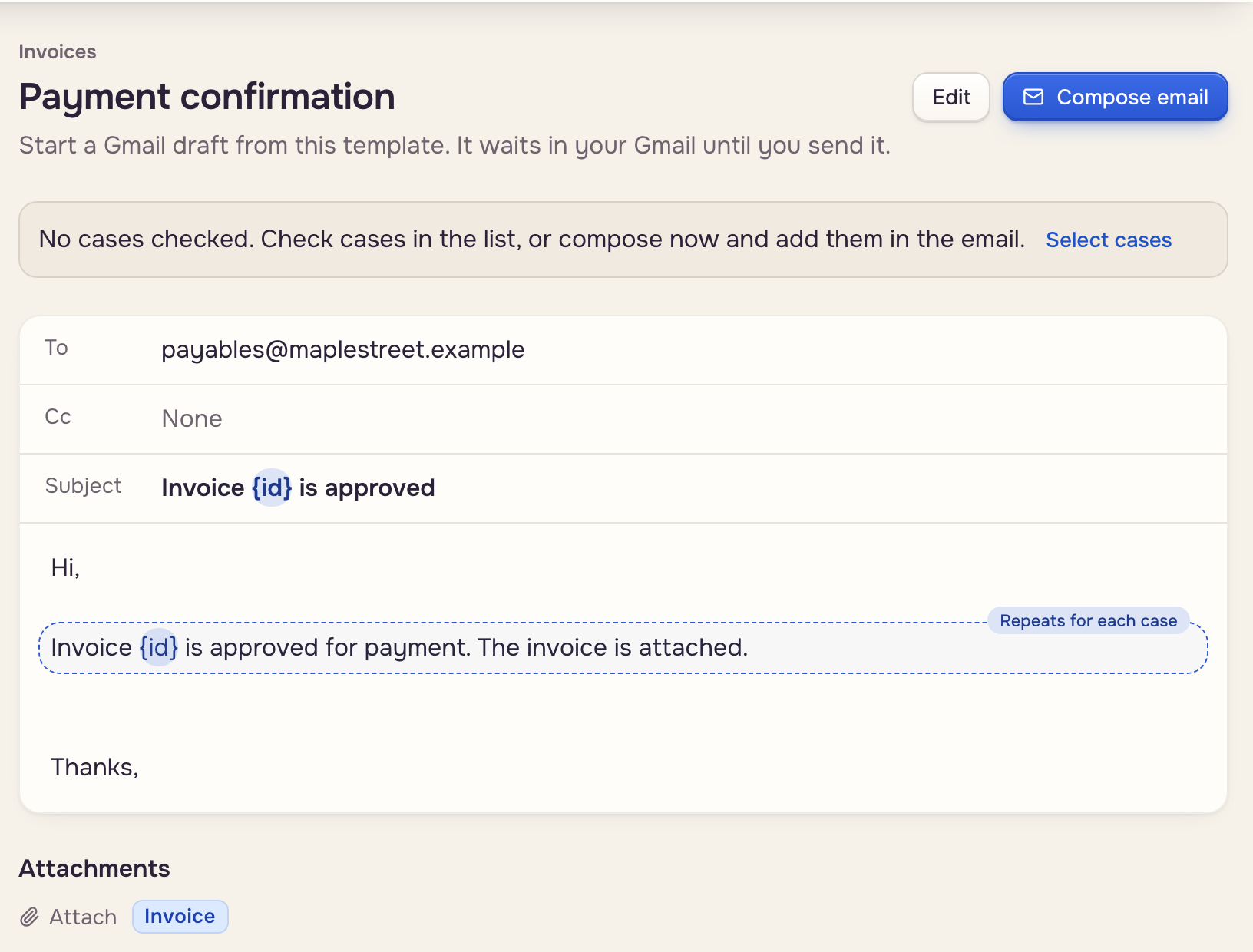
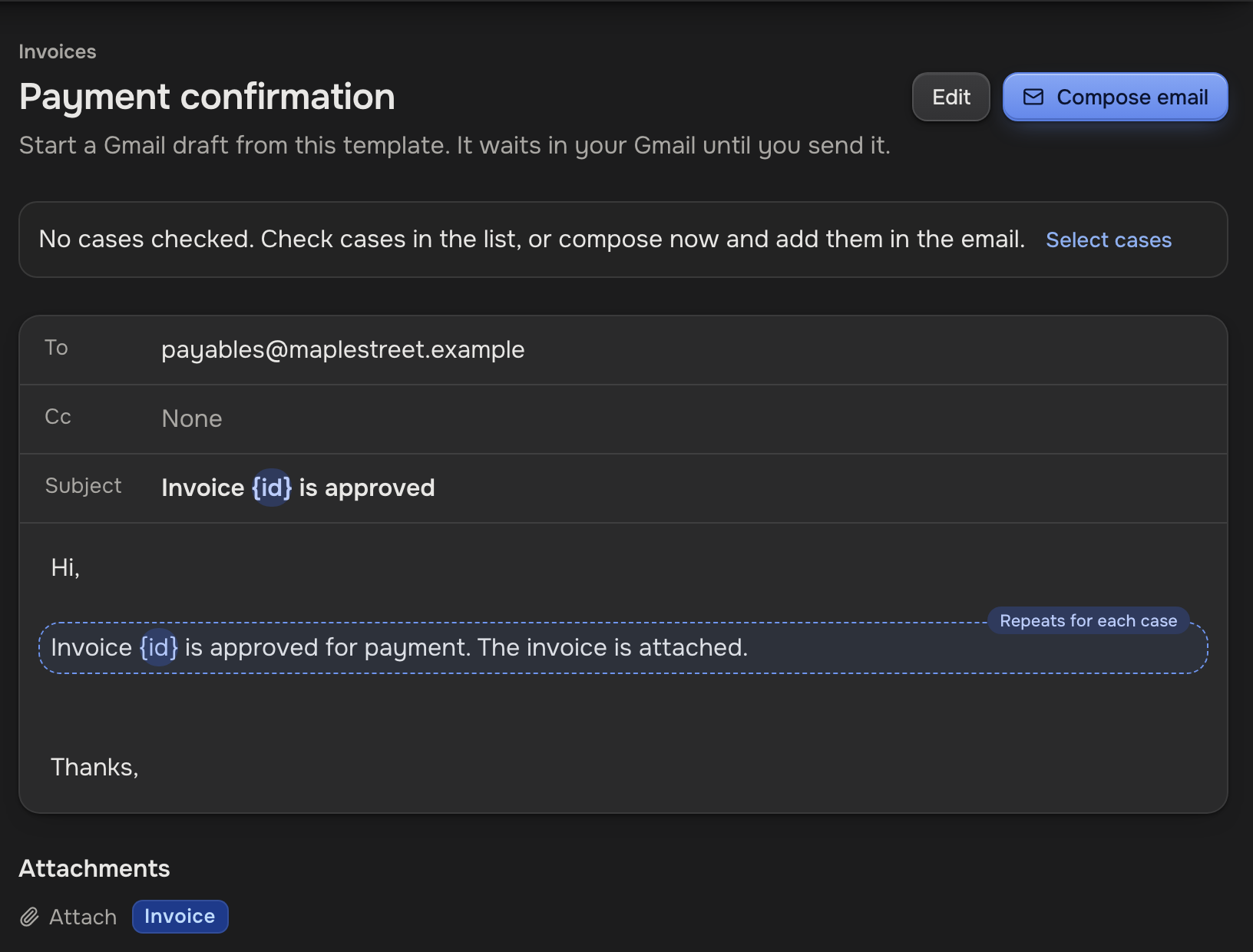
- Compose email on a template starts an email from it.
- Insert field adds a case value, and a paragraph with one repeats for each case. A table's fields sit together under its name. In an email, everyone picks a template from the Template menu.
Recipients
To and Cc each take any mix of these:
- An address. Type it. The email always goes to that person.
- A case field. Click into To or Cc, then pick the field under Insert field. Each email goes to the address that field holds on its case.
- Sender of the incoming email. Pick it under Insert field. The email goes back to whoever sent the email an automation picked up for the case, a different person each time.
- An instruction. Click Choose by instruction and say in plain words who gets the email. For example: "If the offer is over 250,000, send to dana@example.com; otherwise to lee@example.com." The AI reads it with the case's values and the workspace's Playbook.
An instruction picks, it never invents. It uses only an address written in the instruction, written in the Playbook, or found on the case. An automation set to send leaves a draft instead when the instruction picks an address found only on the case, so a person checks it first.
In an email you write, the instruction fills in To or Cc for an email about one case. For an email about several cases, add the recipients yourself. Each time an instruction runs, it uses a little of your AI allowance.
Limits and fixes
One email holds:
- Ask your workspace admin to enable Send emails: an admin ticks Send emails on your card in workspace settings, under Team.
- No drop zone under Attachments: an admin ticks Update cases on your card in workspace settings, under Team. A teammate who sees only some categories gets no drop zone, because a dropped file is saved without a category.
- Connect your Gmail to compose: click it.
- Uncheck some files: over 20 files.
- Over 22 MB: switch files to Link.
- Gmail didn't open after Open in Gmail: a blocked pop-up. The draft waits in Gmail Drafts.
- The recipient instruction could not choose an address: it found none it may use. Add the recipients yourself, or name the address in the instruction.
- An automation's activity says a field is empty on this case: that case holds no address in the field the template sends to. Fill it on the case, or add an address or an instruction to the template.