The AI assistant
The AI assistant is a chat beside the app that does real work in your workspace: it finds and updates cases, builds templates and filters, sets up automations and prepares emails. It acts as you, with your access and your plan, and asks before any big change.
Click Open AI assistant at the top right. The chat opens beside what you're doing and knows the case you have open: "add a note to this case" is enough.
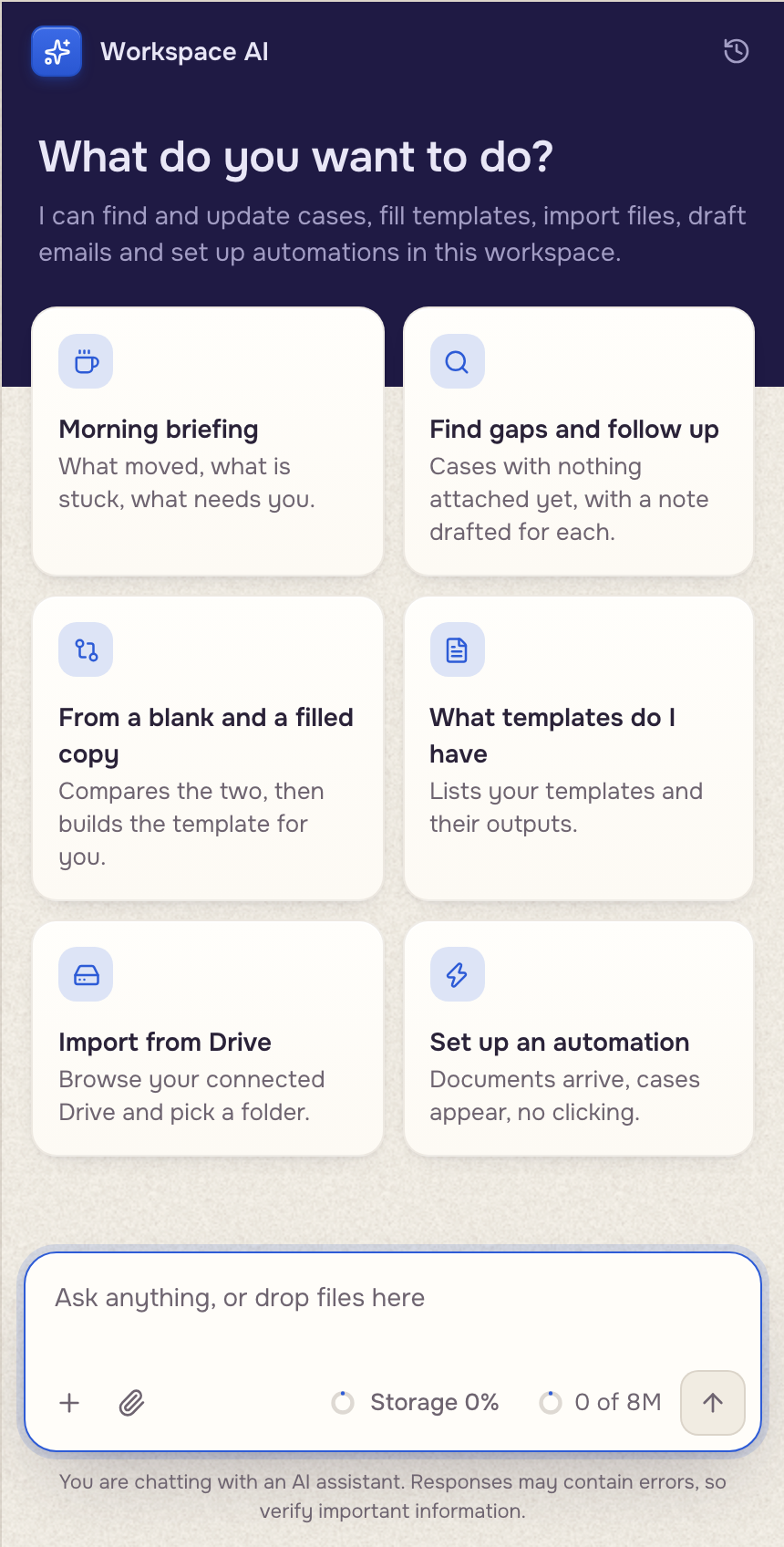
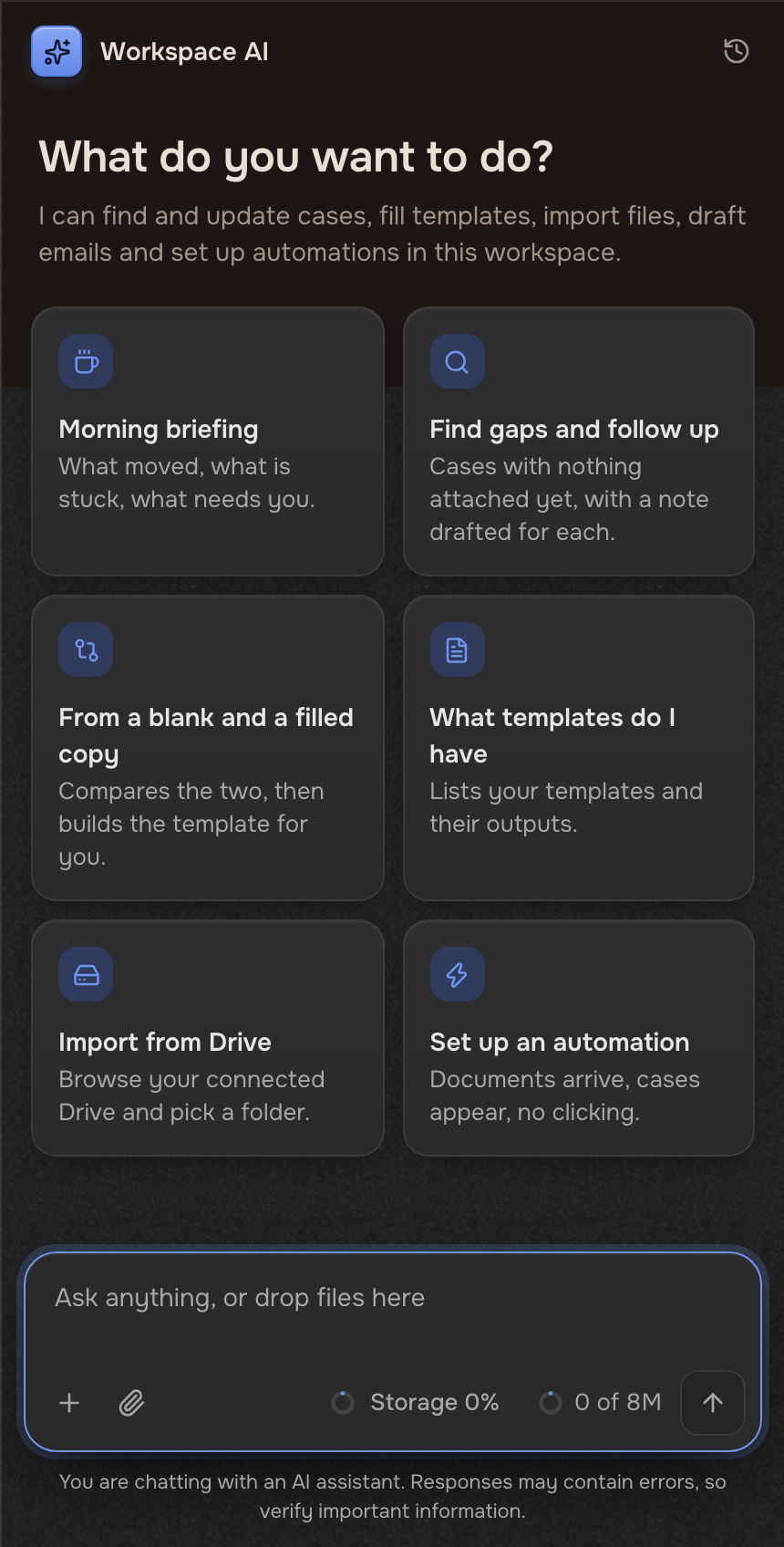
What you can ask
It works in the workspace you have open, with your access.
On a plan with the dashboard it also adds your cases up. Ask how many cases there are by a field, or ask what one of your breakdowns says: it reads the breakdown across all of the workspace's mailboxes, without the Trash, and tells you that. A workspace admin can also ask it to add a breakdown or change one ("show me that by client too"): it appears as a card with Open, and in Analytics, where you can change or delete it. Under an answer, the breakdowns it read and the Playbook, when it used them. Click one to open it.
Building from a filled copy: Build from a completed example.
Changes that wait for your yes
Small changes apply at once and show in the case's Activity: changed values, notes, new cases. It can fill a table on a case too, such as a list of items with quantities and prices, and it writes the whole table at once. Bigger changes show a card first.
After it works something out about a case, or changes values on it, it may offer to add a note about it to that case. Click Add note to keep it, or Skip. You can change or delete the note in the case's Activity.
 Your request
 Waiting for your yes
 Applied
These wait: changes to many cases, mailbox moves, placing fields, automations, adding someone to a case, a change to the Playbook, settings, deleting a filter, moving a file. The card ends with Reply yes to apply. or names its change (Reply yes to move them.). A question, or "yes, but…", gets a new card instead.
Files in the chat
Click the paperclip, or drop files on the chat. With a case open they go to that case; with none open, say what to do with them. The + menu has Import a folder, New case and New cases from a list.
 A spreadsheetNew cases
The Playbook
On a plan with the dashboard, each workspace has a Playbook: one page of plain text for its own rules, on the Playbook tab of Analytics (The dashboard & workspace). The AI assistant reads the open workspace's Playbook on every message, and what you ask in the chat wins over it.
Tell the assistant a rule to keep ("remember that we round every price to the nearest $25"). It shows the exact line it will add and adds it when you type yes. It can change or remove a line the same way. Only an admin of the workspace can change its Playbook.
History and limits
- Past chats sit behind the clock button (Chat history), grouped by day and searchable by title. New chat starts over.
- It runs on the AI model picked in Settings (Integrations & AI model) and spends the same AI tokens as everything else. The message box shows two rings: the month's AI tokens and storage. Each turns amber from 80% and red when full. Click the storage ring to open Usage in Settings. On a phone the rings show without their figures.
- From 80% of storage, a small card under the reply shows how much is left; once storage is full, another card says so. Each shows once in a chat. Manage storage on the card opens Usage in Settings. If storage is too full to save a document it filled, the reply says so.
- A teammate who isn't an admin of any workspace can't change templates, automations, saved filters or settings through it.