Integrations & AI model
Settings is where you connect your own Gmail and Google Drive, pick the AI model the app uses for you, set your time zone, and export your data. Open it from your name at the bottom of the sidebar.
Settings are about you and your account, not one workspace.
Connect Gmail and Google Drive
Under Account, turn on the Gmail or Drive switch and approve on Google's screen.
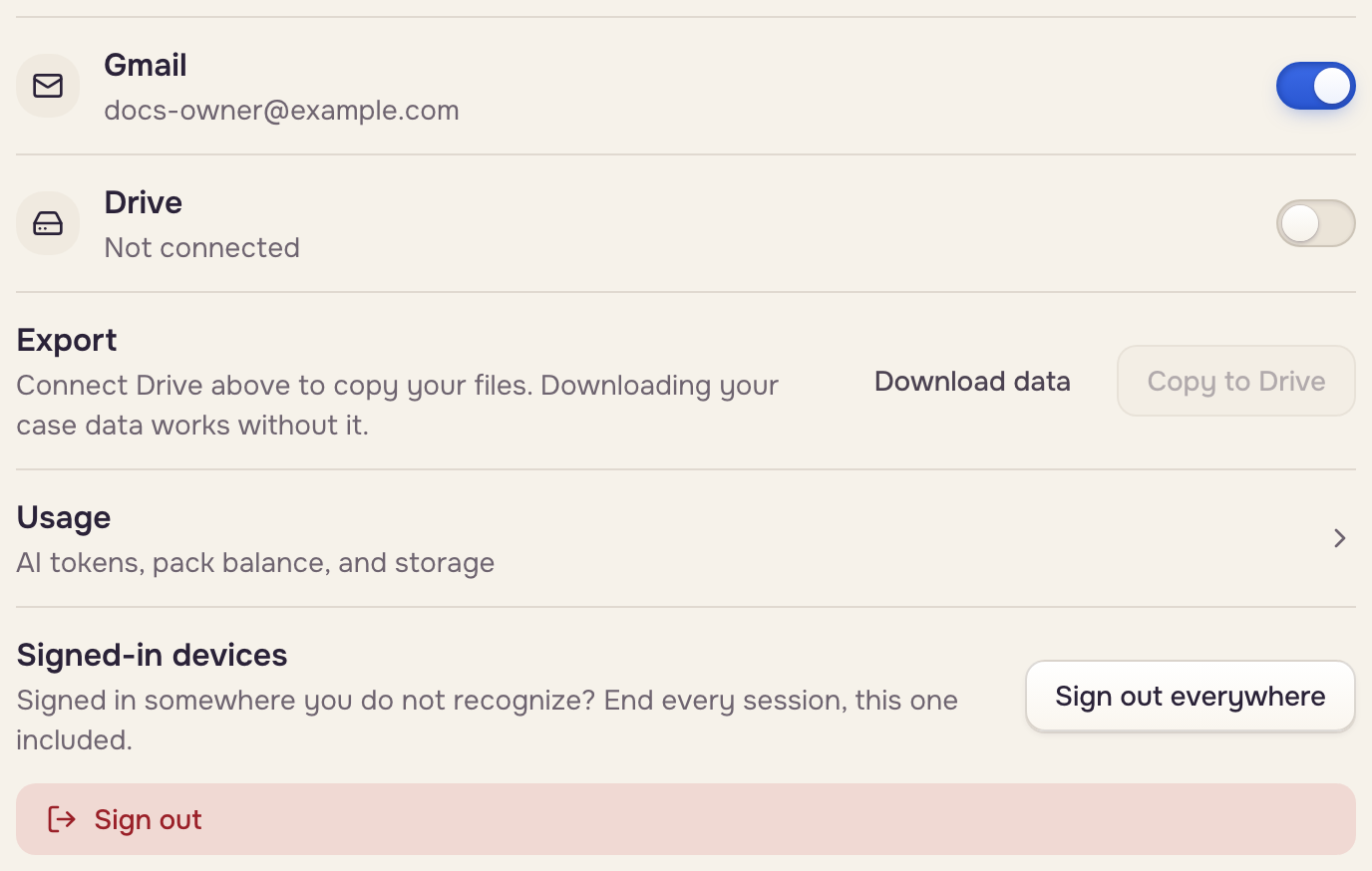
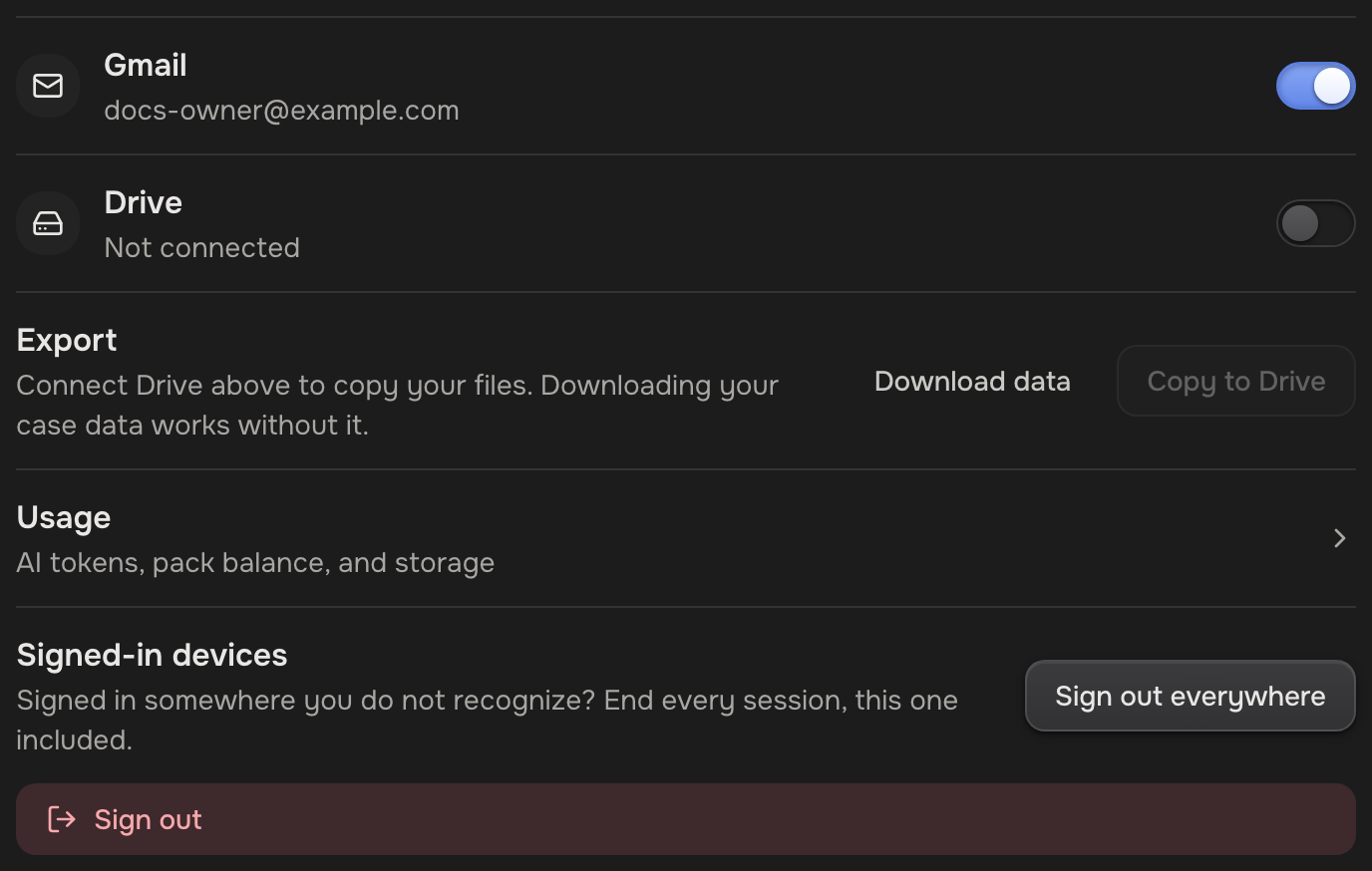
- Gmail: automations read your inbox and add calendar reminders, and the app sends your emails from your Gmail when you click Send, or puts them there as drafts with Open in Gmail. Opens on Pro.
- Drive: automations watch a folder, and you can copy your files out. Every plan.
Connections are personal: each teammate connects their own, and an automation runs on the Google account of the person who made it. To disconnect, turn the switch off and click Disconnect. Automations that use it pause until you connect again. Your cases and files stay.
Choose the AI model
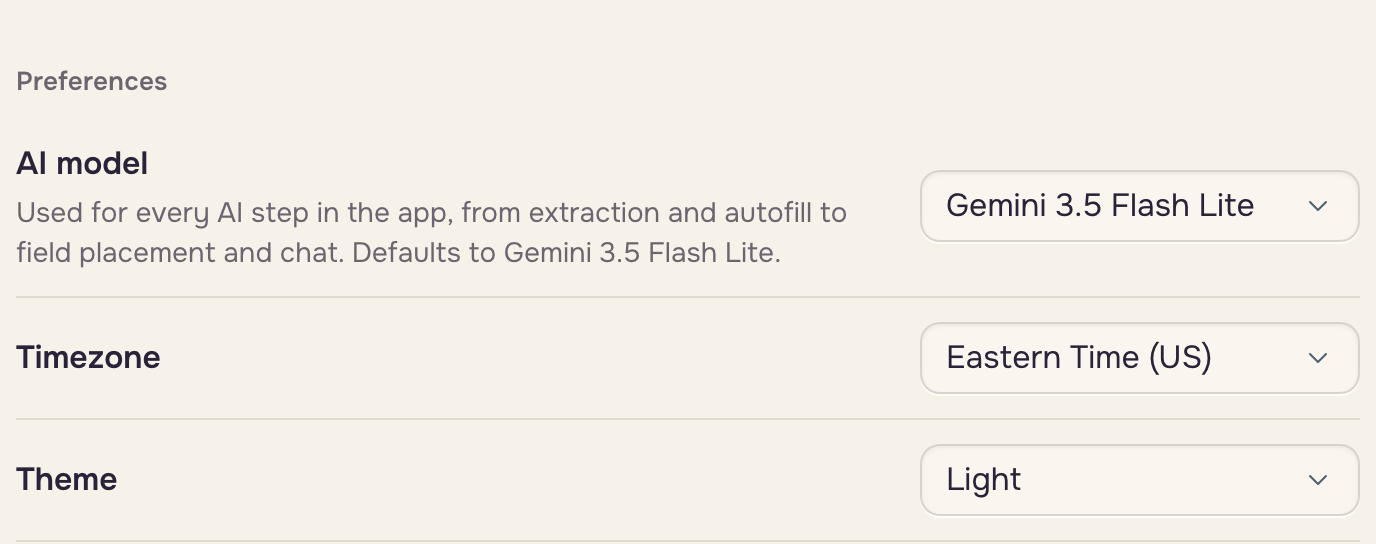
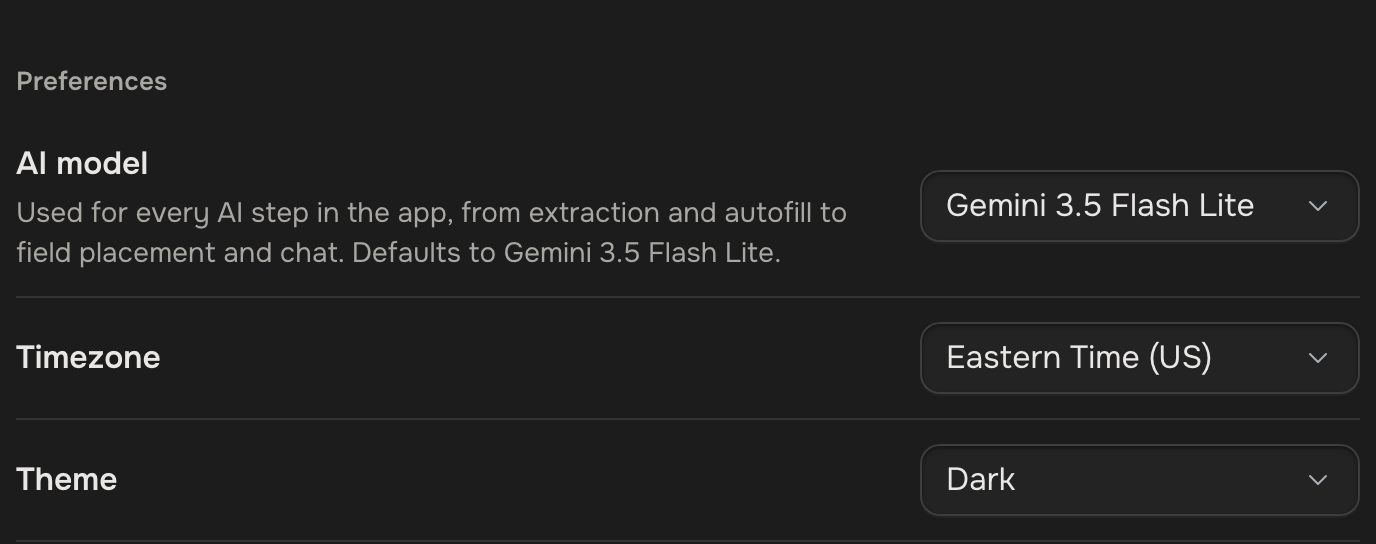
Under Preferences, pick the AI model. It saves the moment you pick, and every plan has the same three.
| Model | Pick it for | Token use |
|---|---|---|
| Gemini 3.5 Flash Lite | Everyday work. The default. | Standard |
| Gemini 3.5 Flash Lite (Thinking) | Worked-out values, like totals, that must come out right. Fields can land less well when a layout shifts. | Standard, plus its thinking |
| Gemini 3.1 Flash Lite | Making your AI tokens last. | Half |
Work you start runs on your pick. Work nobody starts, like an automation reading a new file, runs on the account owner's pick. All of it spends the owner's AI tokens (Plans & limits). Reading a scanned page while building a template from a filled copy always uses a stronger model.
Set your time zone
Timezone, under Preferences, decides which day today is for you: today's date on a document, the date in a file name, and "is in the last 7 days" in a filter. Automatic, the first choice, follows the device you're on, so your today moves with you when you travel. Pick a time zone from the list to keep that one wherever you are. It saves the moment you pick. Work nobody starts, like an automation making a document, uses the account owner's time zone: the one they picked, or else the one where they last opened the app. Dates already saved stay as they are; only today follows your time zone.
Export your data
Export, under Account, works on every plan.
 Every case file
 Google Drive
- Copy to Drive copies every case file into your Google Drive. Connect Drive first. An email arrives when it's done.
- Download data saves a file of your workspaces, templates and cases, with their values and history, plus what the app keeps about you: your profile, the workspaces you're a teammate in, and your record of accepting the terms, your email choice and any document you signed.