Triggers & steps
A trigger is what starts an automation: a new email, a new file in a Drive folder, a case left untouched, a value that changes, or a date coming up. Steps are what it does each time, like a calendar reminder or an email.
Every automation has one trigger. Pick it at the top of the trigger row, under Trigger type. Switching clears that trigger's settings.
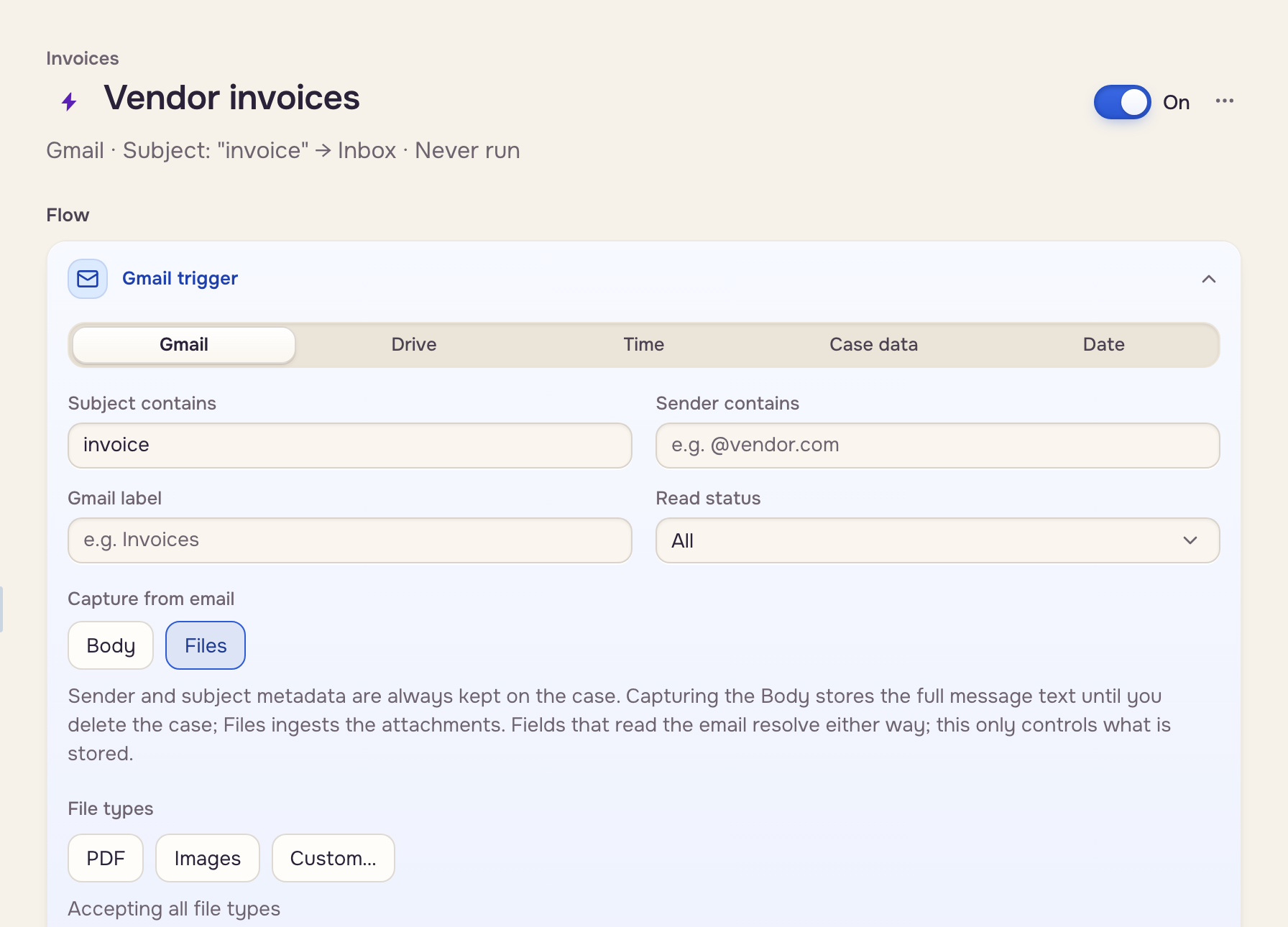
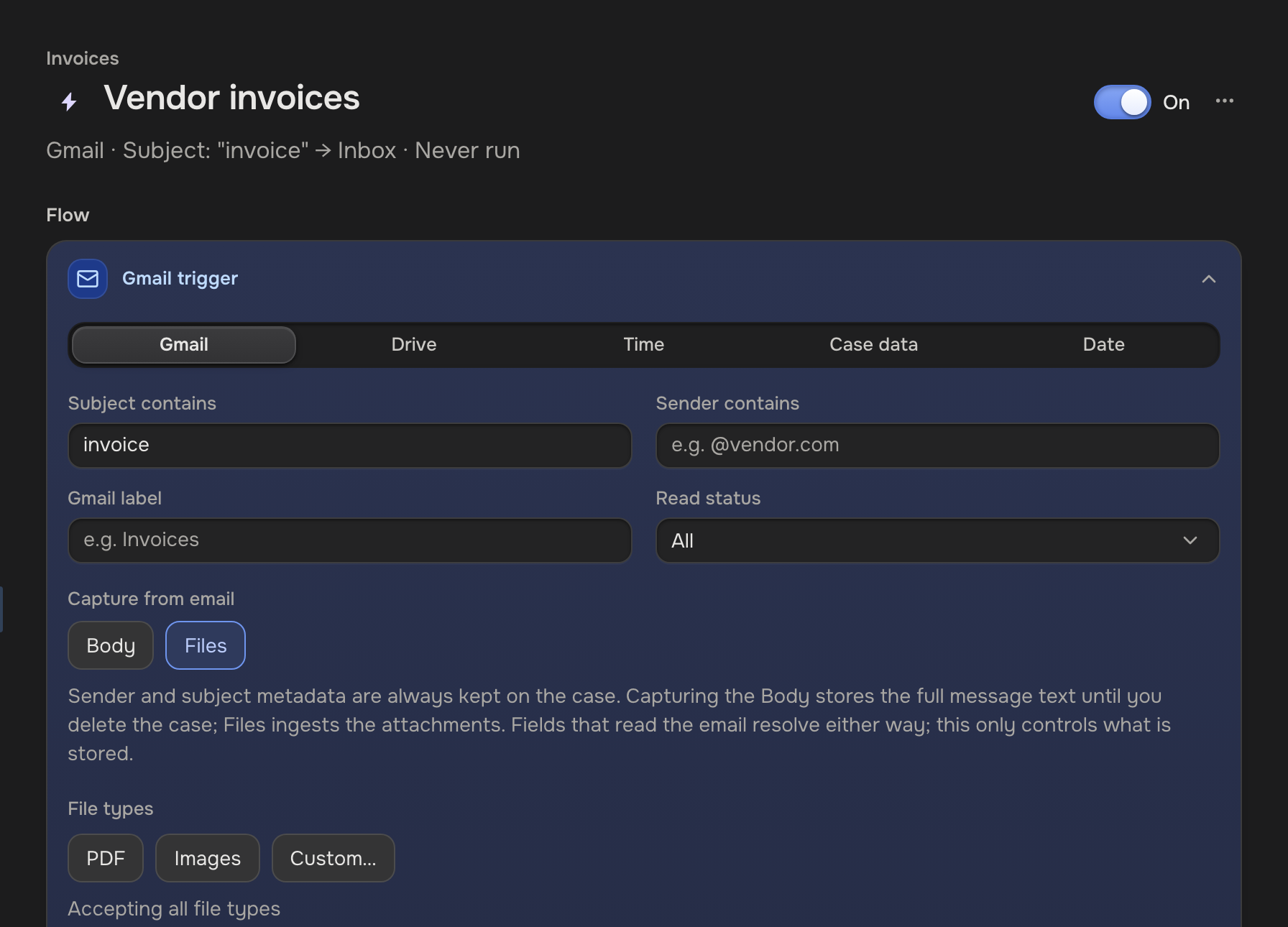
Gmail
Watches the inbox of the person who made the automation.
- Subject contains, Sender contains, Gmail label, Read status: every filter you fill must match. Capitals don't matter.
- Capture from email: Files keeps the attachments, Body the message text. Pick one or both. Sender, subject, and date are always kept.
- File types: PDF, Images, or Custom… (a new trigger takes PDFs and images).
- With an Extraction step, + Capture from the email saves the sender, the subject, or a piece of the body as case data.
Drive
Watches one Google Drive folder. Only files directly in it count. Import from Google Drive walks through it.
 One Drive folder
 The automation runs
Time
Moves cases nobody has touched. Pick the mailbox under From mailbox, the days under After N days idle, and where they go under Mailbox routing. A new file, an edit, or a note resets the count. It checks once a day.
 Days of no activity
 Another mailbox
Case data
Runs when a property of a case changes, whoever changes it: a teammate, another automation, or a client filling in a form you shared with them.
Under Add property, pick a property of the case. Then choose what starts the automation:
- Changes runs the steps each time the property changes.
- Is filled waits until the property has a value.
- Is waits until the property holds the value you pick or type, for example Status is Done.
Add as many properties as you need. The steps run when a watched property changes and every Is filled and Is holds. While one does not, the activity list under the automation names it.
 A watched property changesYour steps
To make a document as soon as a case has what it needs, add the properties the document uses, set each to Is filled, and add Generate document. Add Email to draft or send it.
One automation setting off another
A Set property step gives a property of the case a value, and a Generate document step can fill properties in. When another automation watches one of them, it runs too, as long as its own conditions hold. For example, one automation sets Status to Done, and another that starts when Status is Done then runs. An automation never runs twice in one such chain, and a chain stops after five automations.
Date
Runs a set number of days before a date on a case, like a due date. Pick the Date field and the Days before: 0 is the day itself, a negative number is after it. It checks once a day.
 A date on the caseYour steps
Steps
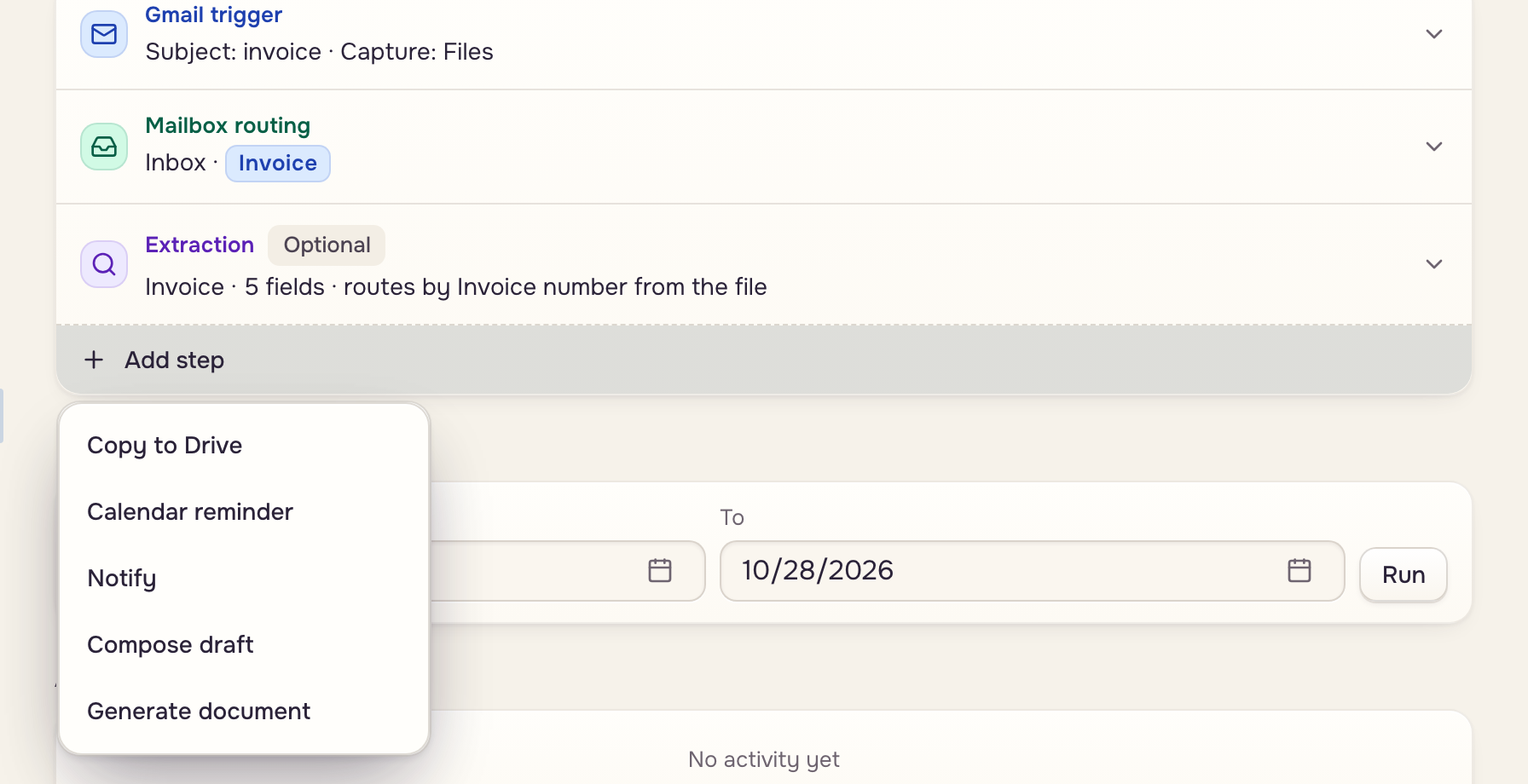
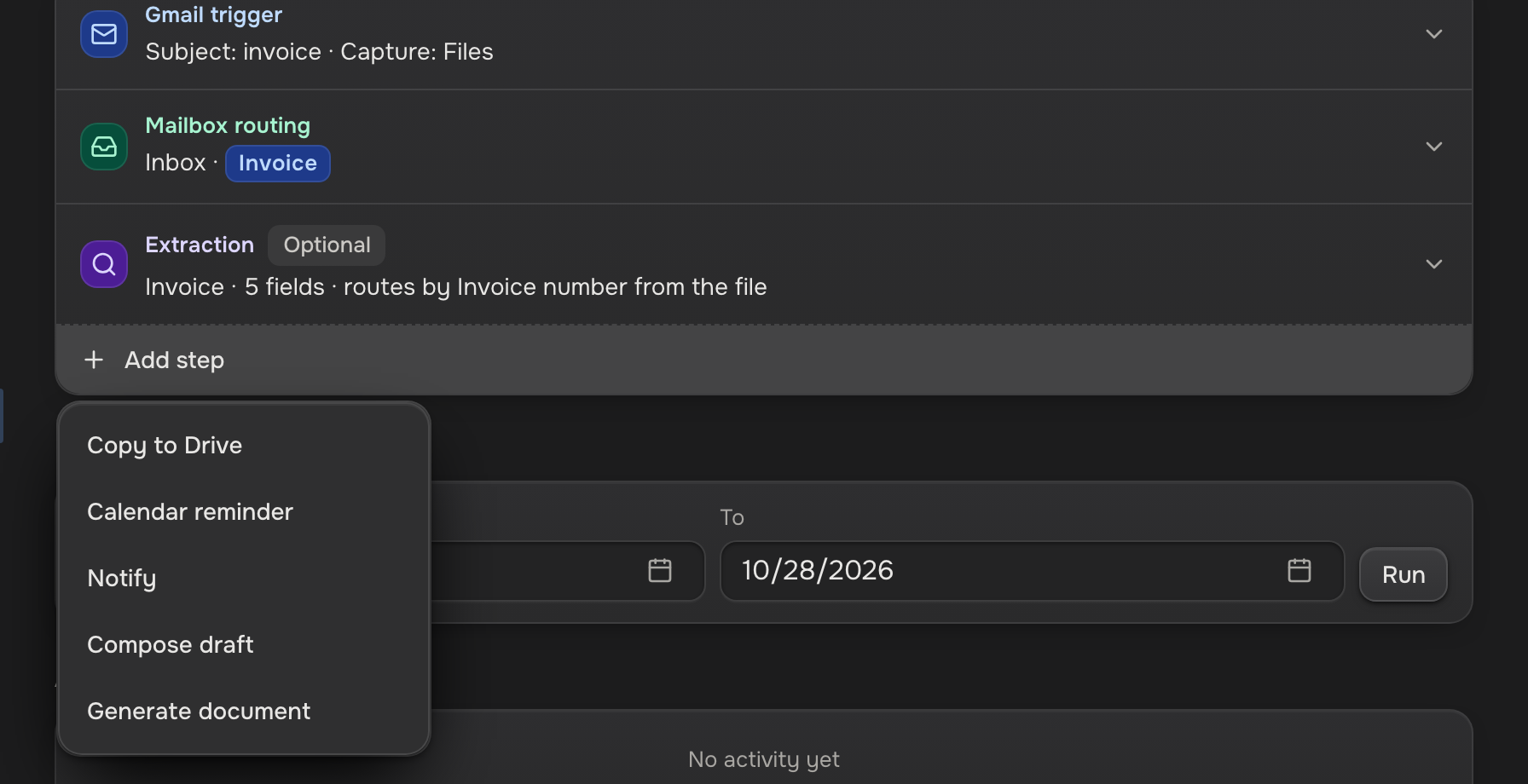
Click Add step under the trigger. Case data and Date automations need at least one.
| Step | What it does | Triggers |
|---|---|---|
| Extraction | Runs a template on each file | Gmail, Drive |
| Copy to Drive | Also saves each file to a Drive folder | Gmail |
| Calendar reminder | Adds an event to your Google Calendar, up to five | All |
| Notify | Posts a notification to the workspace | All |
| Move to mailbox | Moves the case | Case data, Date |
| Generate document | Runs a template and adds the document to the case | All |
| Drafts or sends an email from an email template in your Gmail | All | |
| Set property | Gives a property of the case the value you pick | All |
Reminders and emails use your Gmail connection. An Email step leaves a draft in your Gmail unless it is set to send (see Sending email from an automation).
The order steps run in
Steps run from top to bottom, in the order the table lists them, whatever order you added them in. Generate document always runs before Email, so the email can attach the document the automation just made. When the document was not made, no email is made either, and the activity list under the automation says why. Set property runs last, and in an automation that generates a document it waits for that document too, so a case is never marked as done when nothing was made.
When a template asks for an answer
Nobody is there to answer a question while an automation runs. If the template in Generate document has a required question and the case has no answer for it, the case is held back: no document and no email. The step tells you this when you pick such a template, and the automation's activity names the missing answer.
To finish a held-back case without another click, add a second automation: a Case data trigger on the answer's field, with Generate document and Email. When someone saves the answer on the case, that automation makes the document and the email.
A template with no required questions never holds a case back.
Sending email from an automation
Under When this step runs, an Email step offers Leave a draft in Gmail (the default) or Send it. With Send it, the email leaves as soon as the step runs, from the Gmail account of the person the automation runs as, and nobody reviews it first. Only someone with Send emails in the workspace can turn Send it on, or change the email template or the trigger of an automation that sends.
Even when it is set to send, the step leaves a draft instead, and the automation's activity says why, when:
- it runs over past emails or files (Run on past emails or Run on past files);
- the incoming email was sent automatically: an auto-reply, a bounce, a mailing list, or mail your own mailbox sent;
- the document the automation generated is not attached, because the email template does not attach files of that document's category (the step warns you about this when you set it up);
- it has already sent an email for that case;
- it has sent 20 emails in the past hour;
- the email template's recipient instruction could not run, picked an address it may not use, or picked one found only on the case (Recipients).
An email is never sent twice. If Gmail does not answer, the activity says to check Sent in Gmail, and the step does not try again.
To reply to whoever sent the email, put Sender of the incoming email in the template's To (Recipients). Each reply goes to that email's sender, a different person each time.
Before you turn Send it on, narrow the trigger so only the emails you mean reach the automation: a Sender contains filter is the surest. Whoever can get an email past the trigger can start a send, and with the sender in To, the email goes back to them.